Novella 1.5 - Command Palette and Tasks
Welcome to Novella 1.5! This latest release is focused on improved productivity with the Command Palette and a polished Tasks experience.
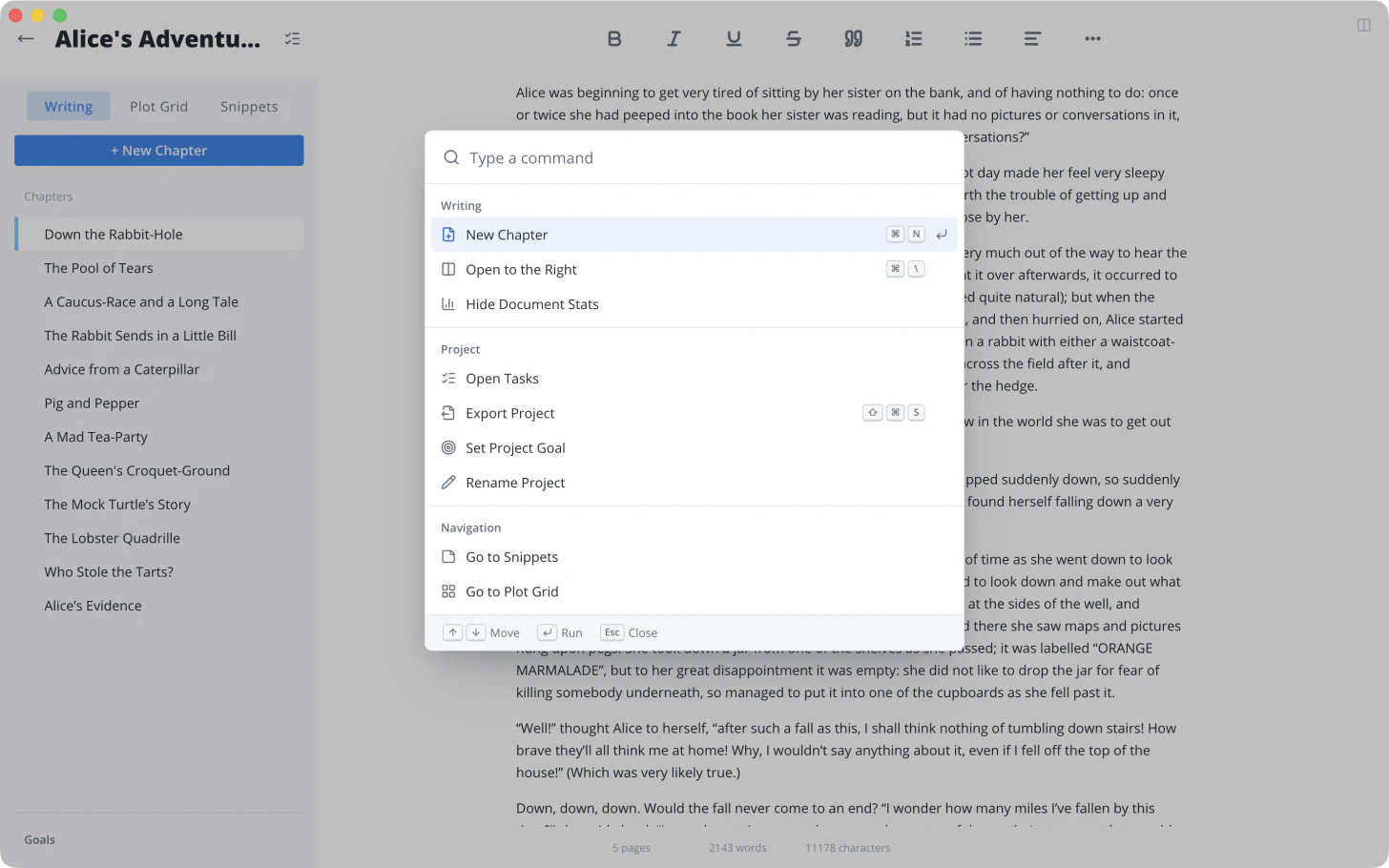
Command Palette
Introducing the Command Palette. All the commands you need a simple keyboard shortcut away! ⌘K (CtrlK on Windows) opens the palette and you can quickly type and select a command to run. The Palette gives you a fast and keyboard-friendly interface for navigating and interacting with Novella that hopefully is useful to casual and power users alike.
There are several categories of commands including writing, project, navigation, and global. Commands like creating a new chapter or snippet, updating your theme from light to dark mode, quickly navigating to settings, and a lot more. As new features are released they will also get their corresponding command palette entries.
Hopefully this new interface resonates with you and helps you become more productive!
Tasks Redesign
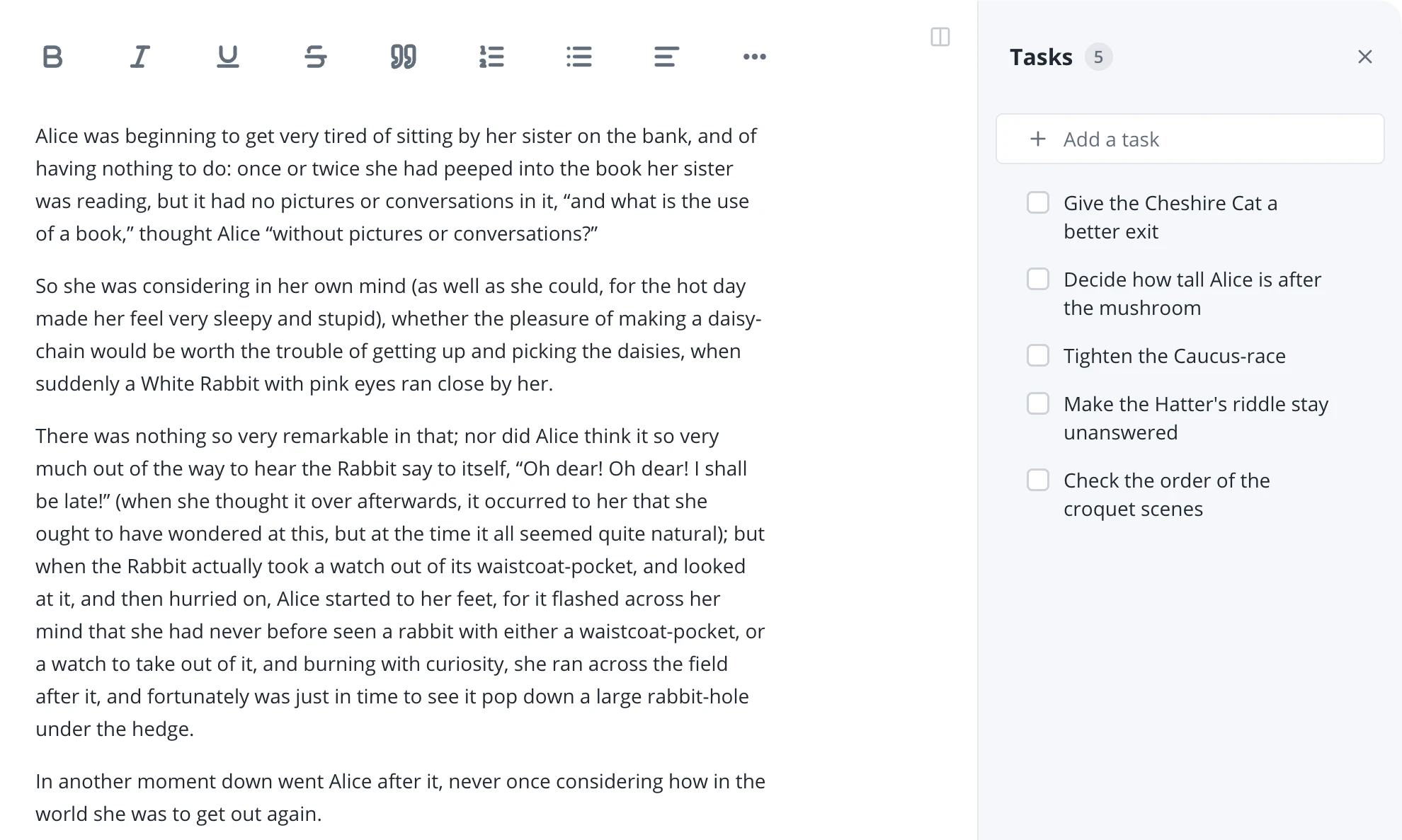
Project tasks was one of the first features implemented and was definitely showing its age compared to the rest of the Novella experience. It has finally been given a visual refresh to more closely align with the rest of the application’s design. The text and checkboxes are easier to visually parse and aren’t so large compared to the rest of the UI. Hopefully this makes them less distracting and more helpful so you can focus on what’s important, your writing.
In addition to the redesign, you can choose from three different locations for your tasks to best work with your writing style!
- Beside the page: This is the default and is to the right of your writing page. If there’s ever not enough space due to the screen size, it instead opens as a popup.
- In the sidebar: When you select this option, toggling the tasks will replace the current content in the sidebar. The benefit is it doesn’t take up any extra screen real estate, at the expense of hiding the regular sidebar content.
- As a popup: Opening tasks will open them in a popup over the page. Takes up no screen real estate but it does prevent you from working while having your tasks open.
The reason for supporting all three options is that I could think of legitimate arguments for each option, which told me that users would likely want to pick what worked for them. Check out the Personalization section in Settings to pick your preference and change it any time you’d like.
Custom Menu Bar on Windows
This one is a small but meaningful improvement. The default menu bar experience on Windows is now a custom menu bar instead of the native one. The main benefit is the menu bar finally looks like it belongs to Novella instead of looking like it was bolted on. This is one I’ve wanted to do for a while but since I personally use a Mac it wasn’t something I thought about. Well, I finally decided to tackle it for all you wonderful Windows users out there.
Don’t like the custom menu bar and want the native experience back? No problem, just change it back in the Personalization section in Settings! It requires an app restart to take effect.
Upgrade Today
Upgrade to Novella 1.5 simply by opening the app. It should prompt you within a moment to install the latest released version. If that doesn’t work for whatever reason, you can download the latest and install it manually.
Happy writing!